n8n Tutorial for Beginners: Step-by-Step Workflow Guide
Key Takeaways
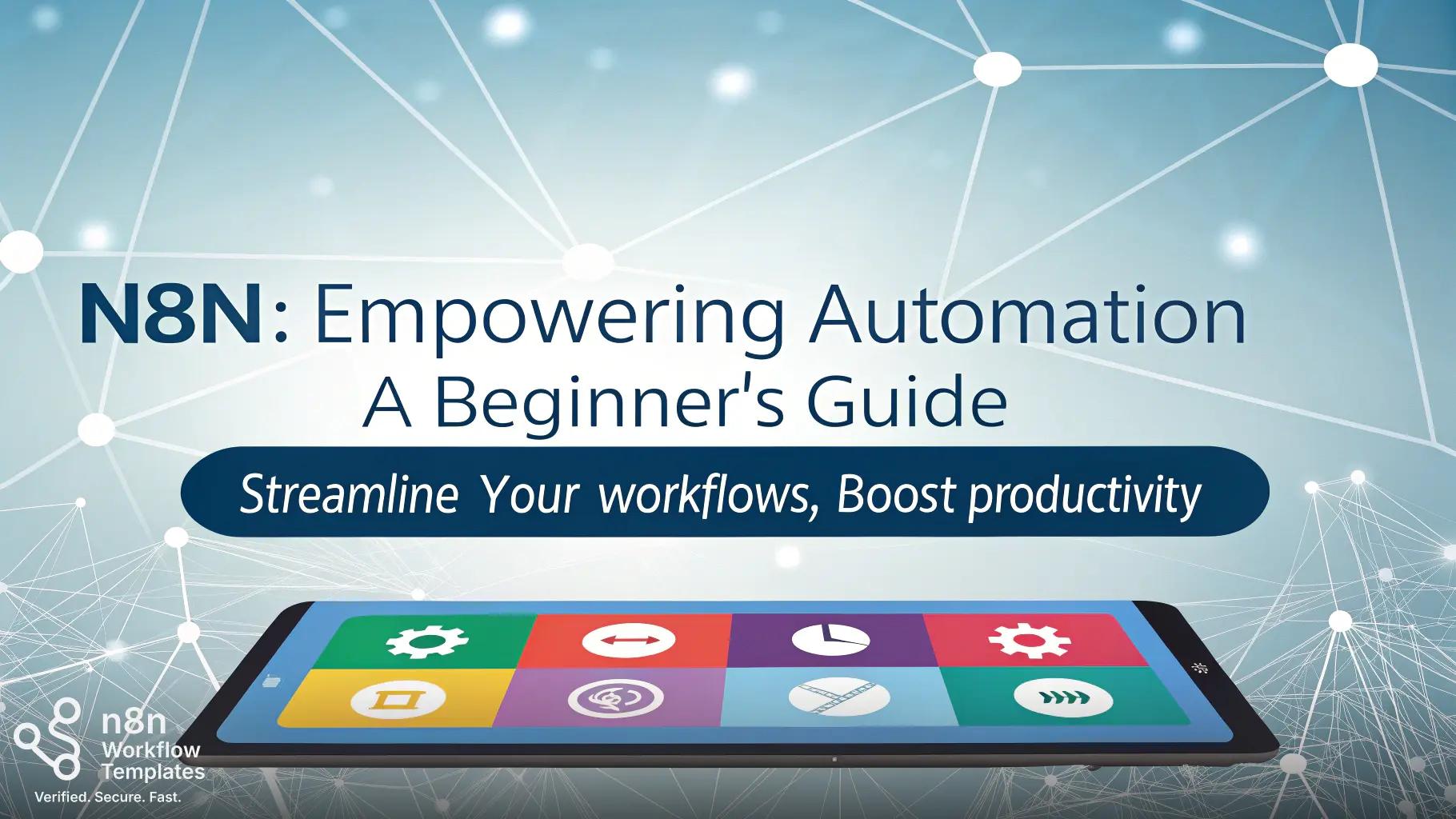
n8n is a dynamic automation platform that empowers users to design and execute both simple and complex workflows with ease. This comprehensive guide introduces beginners to n8n, covering fundamental concepts, detailed steps to get started, and emerging use cases. Below are the key highlights to guide your journey with n8n:
- Master n8n’s intuitive interface and workflow structure: Familiarize yourself with the drag-and-drop editor, the workflow panel, and the essential components like nodes and triggers to simplify your automation setup.
- Create your first workflow effortlessly: Learn the basics by building a straightforward workflow, such as sending email notifications or integrating data from webhooks, to understand data flow between nodes.
- Harness the potential of nodes for seamless integrations: Nodes act as the foundation of n8n workflows, enabling integrations with popular applications, APIs, and custom-built functionality.
- Make use of pre-built templates: Save time and effort by utilizing n8n’s templates for common automation tasks, including marketing campaigns, CRM updates, and data synchronization.
- Master triggers and logic for complex workflows: Incorporate trigger nodes to automate workflows based on real-time events, and use logic-based nodes to create advanced, conditional automations.
- Integrate n8n with leading tools and platforms: Connect n8n to CRMs, project management tools, or data systems, streamlining processes and centralizing your automation ecosystem.
- Explore AI-enhanced workflow capabilities: Integrate artificial intelligence tools with n8n to unlock innovative applications, such as intelligent agents and decision-making algorithms.
With an intuitive design that caters to both beginners and experienced users, n8n positions itself as a robust automation platform designed to simplify tasks and scale with your needs. In the sections that follow, we’ll guide you from building foundational workflows to exploring cutting-edge features like AI-powered automation.
Introduction
The concept of automation can feel intimidating—especially if you aren’t a developer—but imagine a tool that empowers you to connect apps, systems, and processes effortlessly without coding expertise. That’s the promise of n8n, a versatile and beginner-friendly automation platform that enables you to eliminate manual tasks, improve productivity, and achieve higher operational efficiency.
Whether you're a small business owner aiming to streamline repetitive tasks, an IT professional exploring scalable automation solutions, or a marketer looking to optimize workflows, n8n has tools to fit your needs. Its drag-and-drop interface, extensive library of templates, and powerful integrations make it accessible for first-time users and scalable for complex use cases.
This hands-on guide will walk you through n8n’s essentials, from navigating the platform to building workflows and incorporating advanced features like logic-based nodes and external API integrations. Let’s embark on your automation journey to unlock the true potential of n8n.
Navigating the n8n Interface: Your First Steps in Automation
A solid understanding of n8n’s layout is critical to building efficient workflows. Designed with usability in mind, n8n features an intuitive interface that simplifies the process of automating tasks, even for absolute beginners.
Key Components of the Interface
- Editor Canvas: The core workspace for designing workflows. Think of it as a visual representation of your automation, where nodes are connected to form logical processes.
- Nodes Panel: Located on the left side, this panel contains pre-configured nodes. Drag and drop these onto the canvas to perform actions such as sending emails, fetching data, or transforming inputs.
- Execution Data Panel: This panel provides real-time feedback by displaying the output of each node, assisting in debugging and optimization.
- Settings Panel: Found at the top-right, this is where workflow-specific settings, triggers, and activation options are configured.
- Trigger Nodes: At the heart of any workflow, trigger nodes initiate automations based on specific events or inputs, such as webhooks, time schedules, or application updates.
n8n organizes workflows systematically, where nodes interact sequentially to form a logical flow. This modular structure ensures flexibility, allowing you to design scalable automations as your requirements grow.
With the fundamentals of the interface covered, you’re now ready to create your first workflow.
Creating Your First n8n Workflow: A Step-by-Step Tutorial
Let’s begin with a practical example—automating email notifications whenever a new entry is added to a Google Sheets file. Follow the instructions below to build your first workflow.
Step 1: Setting Up Your Workflow
- Initiate a New Workflow:
- Launch n8n and select the ‘+ New Workflow’ option.
- Name your workflow appropriately (e.g., “Google Sheets to Email Notification”) for easy identification.
- Add a Trigger Node:
- All workflows require a trigger. In this case, search for Google Sheets Trigger in the Nodes Panel and drag it onto the Editor Canvas.
- Authenticate your Google account using n8n’s secure credential system.
- Configure the Trigger Node:
- Define the Google Sheets file and specific worksheet to monitor.
- Set the trigger to run whenever a new row is added to the sheet.
Step 2: Adding Nodes to Process Data
- Add a Set Node to the workflow for data transformation. This node allows you to create custom variables and format data received from the trigger.
- Map your Google Sheets columns (e.g.,
Name,Email,Message) to variables for use in subsequent steps.
Step 3: Sending Email Notifications
- Drag the Email Node onto the canvas and connect it to the Set Node.
- Configure your email service provider credentials (e.g., SMTP for Gmail or an API-based platform like SendGrid).
- Use placeholders like
{{Name}}or{{Message}}to personalize the email body dynamically.
Step 4: Testing and Activation
- Test the workflow by simulating a trigger event (e.g., adding a new row to your Google Sheet). Review results in the Execution Data Panel.
- Once satisfied, activate the workflow and let it run automatically. Congratulations on completing your first n8n automation!
Leveraging Nodes and Triggers for Sophisticated Automation
Nodes and triggers are the core building blocks of n8n. While triggers define the start of a workflow, nodes perform actions and link processes seamlessly, enabling endless possibilities.
Popular Trigger Nodes:
- Webhook Trigger: Start workflows upon receiving HTTP requests from external applications.
- Schedule Trigger: Automate repetitive tasks based on a specified time or frequency.
- Application-Specific Triggers: Integrate with tools like Trello, HubSpot, or Slack for app-generated events.
Key Node Types:
- Integration Nodes: Connect with APIs and external applications like Salesforce, Twitter, or Dropbox to retrieve or send data.
- Logic Nodes: Introduce conditional logic, branching, and filtering for complex workflows.
- Output Nodes: Deliver results to target destinations, such as sending reports via email or posting updates to Slack.
By chaining these nodes together, users can build highly customizable workflows tailored to their objectives across industries.
Maximize Efficiency with Workflow Templates
Pre-built workflow templates are perfect for beginners who want to jumpstart their automation journey. With templates, you can explore common scenarios and save valuable time.
Example Template Use Cases:
- Route Facebook ad leads to Google Sheets for centralized tracking.
- Notify teams in Slack when a Typeform lead submits a form.
- Synchronize CRM data updates across platforms.
Templates in n8n allow you to quickly deploy automations while providing a learning opportunity to refine workflows further.
Advanced Features: API Integrations and AI-Powered Workflows
As you gain confidence, explore n8n’s API integration capabilities and tap into AI innovations. For example:
- Use HTTP Request Nodes to interact with APIs and fetch data dynamically.
- Integrate AI tools, like OpenAI or ChatGPT, for intelligent automation, such as analyzing customer feedback or generating personalized content.
Example: AI-Powered Sentiment Analysis
Automate customer feedback analysis:
- Collect responses using a Webhook Trigger.
- Analyze tone with an AI Node linked to a sentiment analysis API.
- Automatically route negative feedback to the appropriate team via Slack.
Best Practices for Success
To elevate your automation efforts with n8n, embrace these practices:
- Iterative Testing: Test workflows incrementally to accurately diagnose issues.
- Documentation: Add descriptions to all nodes for ease of collaboration and troubleshooting.
- Security First: Utilize encrypted credentials and environment variables for sensitive data.
Conclusion
n8n is a powerful but user-friendly tool that democratizes automation. Its intuitive interface, adaptable nodes, and extensive integrations allow users to tackle everything from routine processes to advanced, AI-powered workflows. Whether simplifying email notifications or implementing intricate API activities, n8n caters to a diverse range of users and industries.
The future of workflow automation lies in flexibility and innovation. By mastering n8n’s platform, you’ll not only optimize operational efficiency but also position yourself ahead in leveraging emerging automation trends. As you embark on this journey, remember—the possibilities are as vast as your creativity. Are you ready to redefine what’s possible with automation?